Before the actual recording starts, you can collect all kinds of information in different ways at the start of each session.
You can:
oRequest basic recording information: oCreate session name from: Use Metadata parameter to auto-generate session names. oCollect Metadata: oRun a questionnaire to automatically collect all kinds of information |
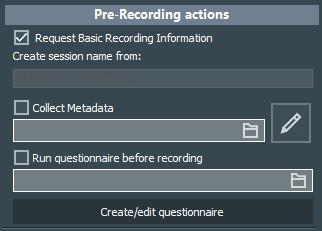
This option is active by default and results in this Basic Recording Information dialog at the start of each new recording session:
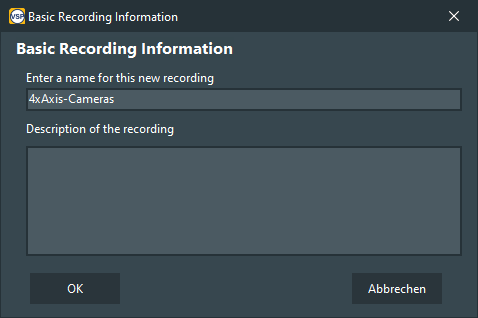
The name entered in this dialog is used for a folder name in which the current recording session is stored.
If no information is entered, the scenario name is used for the recording folder.
▪Clear the Session name request on start of recording option to disable the upcoming dialog to name and describe a session.
Generate Session Name
Instead of entering a session name which serves as a Folder and file name by default, it is also possible to create a session name from metadata values.
When using the metadata form designed in the previous topic, we could use the name of the researcher, location and study for naming the recordings.
This is how it works:
▪Open the scenario properties
▪Clear the selection of the Basic Recording Information option
▪Enter the group name and variables into the 'Create Session name from' dialog using the following syntax
{general1_researcher}-{general1_study}-{general1_location}
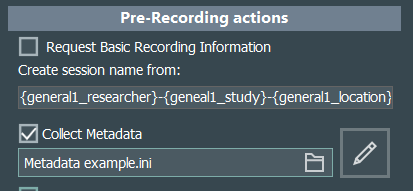
The syntax includes the name of the BLOCK plus the occurrence NUMBER of that block, followed by an underscore (_) and the name of a parameter - both put in curly brackets.
In this example, the information entered into the field 'researcher' of the first occurrence of the block 'general' (that is why you need to enter {general1_researcher} ) is used in the Session name string, followed by the 'study' and the 'location' information from that same block. Like the variables used in this Metadata Example file:
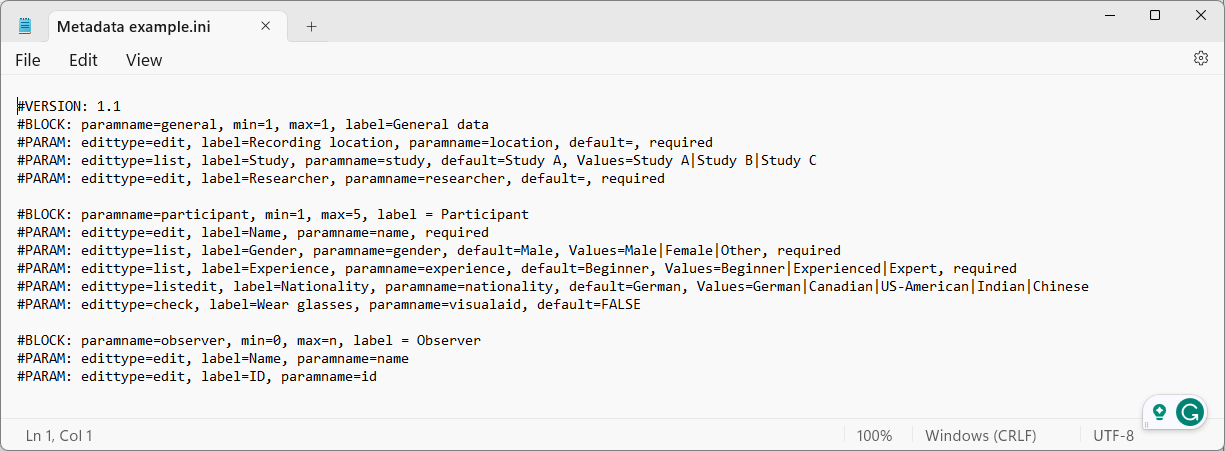
Feel free to adapt both parameter names (paramname) and labels (label) to match your requirements.
▪Make sure the option Collect Metadata is selected and the correct metadata form is selected.
After starting a new session and filling in all the required fields, VSP automatically generates the session name, as well as the folder name in which the current session's recordings are stored, based on the entries provided.
Display Metadata in Video
When using streaming sources, it is also possible to use metadata information as a watermark in the video itself. The syntax for the string is exactly the same as explained for the session names.
▪Read Record Metadata ind Video for further details.
Collect MetaData
Metadata contains session related information that can be used for searching recordings inside of VideoSyncPro Studio.
▪Read Collect Metadata to learn how.
Run Survey
If you want to run a questionnaire at the start of a recording, for instance to collect a number of recording related details about the participants, location, setup, etc.:
▪Select the option Run Questionnaire before recording.
▪Select a questionnaire you created and stored on your recording station.
Note: To completely control VideosSyncPro Studio remotely, you should disable this dialog as well as any of the other prerecording activities.