The Scenario Properties offer a wide range of settings and options that influence the possibilities and requirement for that specific setup. If you need different options for different situations, create a separate Scenario for each situation.
| TIP: | Lab managers can now change the Scenario Properties of the currently selected Scenario directly on the Home page: |
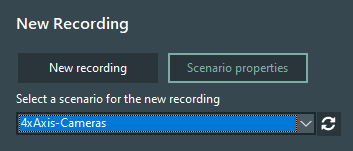
Selecting the correct scenario based on the name alone may be challenging if you have many cameras and multiple rooms and use your video lab for different settings.
To describe the purpose of a specific scenario, enter the information in the Description section of the Scenario Properties:
▪Select a Scenario and click Scenario Properties to open the Scenario properties dialog.
If the scenario is already open:
▪Select Scenario properties from the Menu  or click on the Scenario Properties icon
  .
.
A dialog appears, in which you can enter a plausible Description for the current Scenario, like this:
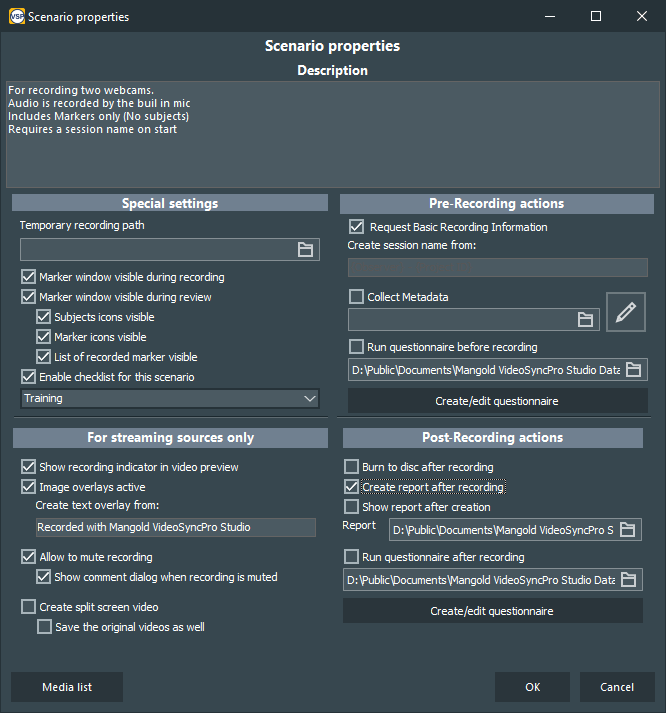
Description
This information is available on the main screen, the moment this scenario is selected:
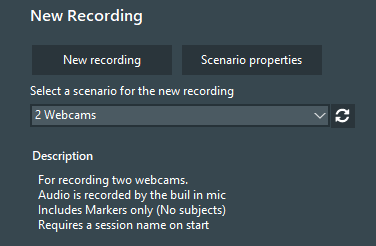
For details on the other settings, read the corresponding topics:
Default Scenario Properties
It is possible to automatically apply specific important settings (like the Temporary recording path, or Backup location) to each NEW Scenario.
▪Log on as an Administrator (not LabManager).
▪Open the Scenario properties of an existing scenario with all relevant settings in-place.
▪Click Save as default to create your default setup template.
IMPORTANT: Saving a default template DOES NOT affect any existing Scenarios AND in new Scenarios, these default settings can be changed.