ADMIN ONLY feature - you need to log on as an Administrator to save a scenario template, to prevent accidental overwriting a previously saved template.
Due to the many options available in the Scenario Properties, it is now possible to save a template holding all relevant options, without loosing the ability to alter these settings for each scenario individually.
These feature is only relevant for more complex video labs were different recording scenarios and setups are required.
Even though flexibility is important, your setup might require specific settings in order to work properly, that are easiyl fogotten.
For example, when using a temporary recording path, to ensure that all recordings are recorded locally and automatically moved to a network drive afterward. If this option is forgotten, the new scenario might not work properly, because the data is directly recorded to the network drive.
Similar for those that use the backup function, if it is not specified per scenario, recordings created with such a new scenario are not backed up if the option is not specified.
Other missing options, like using a predefined session report, a specific metadata form, or enabling the mute feature and other properties will jump to your attention, but when predefined in a template, each new scenario will automatically contain all relevant features for your setup.
Save Scenario Settings Template
▪Log on as an Administrator
▪Open the scenario properties of your default scenario
▪Verify if all relevant options are set properly:
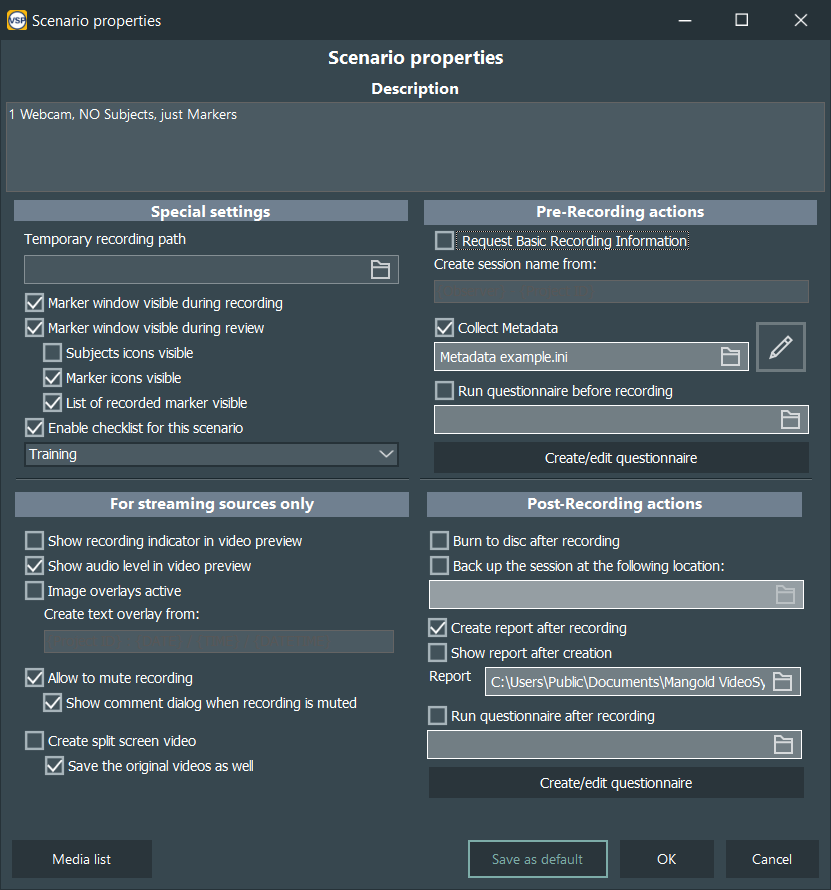
▪Click on Save as default to store the current settings as the default for any new Scenario.
Note: Creating a new template will NOT affect the settings of existing scenarios.