To enable one VideoSyncPro Studio workstation to control other VideoSyncPro Studio workstations, the following settings are required.
Master Configuration
On the Master PC, the slaves must be assigned:
▪Open the Application Settings dialog using the  Settings icon.
▪Switch to the Control tab.
▪On your VideoSyncPro Master Station, select the option Act as Master for the following IP addresses:
▪Enter the IP-number + the corresponding UDP-port of another VideoSyncPro recording station into the empty field.
▪Click Add to actually add this station to your Slave-list.
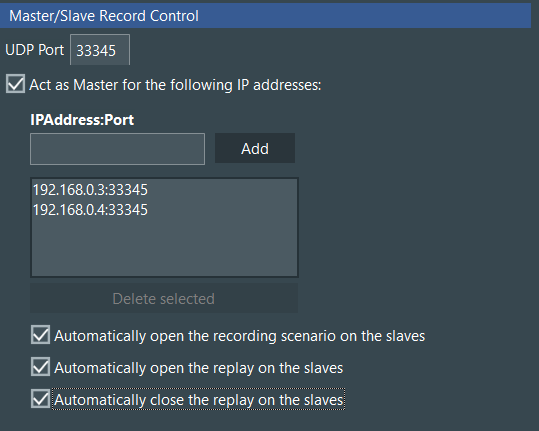 .
.▪For automated control during recording and replay, activate all three options underneath the Slave list.
Scenario Configuration
For smooth work flows, pay attention to those critical preconditions:
oOn each recording system, individual scenarios with the specific sources must be defined, to properly balance the workload per recording system.
oFor automated detection, scenario names used on the Master must be used on the slaves as well.
oDo NOT use underscores in the scenario name on the Master.
Presume a Scenario on the Master computer is named <My Scenario Name>.
On each slave, the corresponding Scenario name should start exactly the same.
After an underscore (_) it is possible to add identification information to avoid accidentally overwriting data when moving them to a NAS or other external drive.
▪For further details, read the topic Slave Recoding Station.