If the recording system chops up each recording session into a range of sequential media files, one solution could be to join all files using a video editing tool.
Besides being rather time consuming, the resulting video might also by to large to handle - expecially if you record 24/7.
In INTERACT, these situations can be handled by adjusting the multimedia timing. This method enables you to analyze the observations for each chopped-up session as a single recording.
The Idea
By changing the start time for each of the sequential recordings, the logged observations will receive sequential timing across Sets, instead of starting from zero for every recording file.
That way, the resulting Events receive sequential timestamps that allow us to merge all observations per session and analyze the Events as if they were coded from a single recording.
Note: Plain descriptive statistics can simply be summarized across Sets, but when looking for sequences and contingencies across recording breaks, all data must be stored in one data Set.
How to set Sequential Timing
We want to log observations with sequential timing across multiple videos. Therefore, we need to adjust the start time of each subsequent recording so that it begins directly after the previous recording ends, instead of starting at its default 00:00:00:00.
Please follow these steps or watch this YouTube tutorial:
▪Create an INTERACT document for your session (or, in case of long time recordings, for all recordings of a single day)
▪Create a single Set (click  ) for each recording section (One Set per video or multiple simultaneous videos – if multiple cameras were used).
▪Sequentially link all the (simultaneous) recording(s) to each Set.
(First recording = Set 1, second recording = Set 2, etc.)
▪Double-click a time value of the first set, to open the referenced recording(s).
▪Click the video control  Go to End to position the recording(s) at its end.
▪Drag the time displayed in the time to the End time filed of Set 1 (or press CTRL+2).
▪Double-click the Timer and copy the current time value from the upcoming dialog:
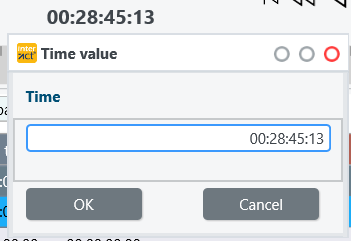
▪Close this dialog after copying the value.
▪Double-click the start time of Set 2 to open the recording(s) linked to that Set.
▪Click on the little gear icon  at the bottom of the recording window to open the Multimedia Settings.
▪Type the end time of the previous Set or paste the previously copied time value into the Define multimedia start time field and add 1 frame (to start the sequential recording at the next frame):
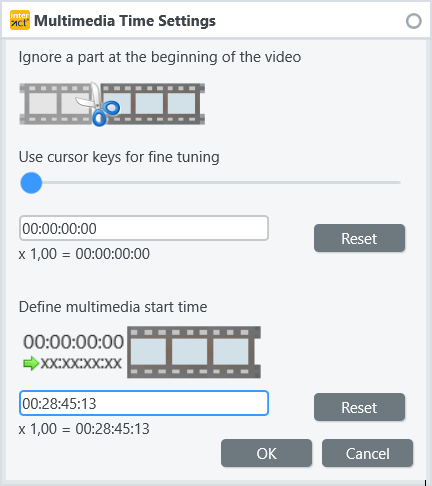
▪Behind the existing file reference, the time shift details are added like this:
...., TCShift: 00:28:45:13
Note: In case you recorded from different angles, this step must be repeated for each recorded multimedia file.
▪Now jump to the end of the currently open recordings using the Go to End command.
▪Drag the End time onto the End time field of Set 2 to store this information.
▪Double-click the Timer and copy the current time value from the upcoming dialog.
▪Double-click the start time of Set 3 to open the recording(s) linked to that Set.
▪Again, paste the copied time information into the Define multimedia start time field and add 1 frame.
▪Continue as before.
▪Watch our YouTube video Adjust Timing of Your Multimedia Files in the Mangold INTERACT Software.
Starting from 2:50 those steps are explained visually:
Adjust Timing of Your Multimedia Files in the Mangold INTERACT Software
After logging all Events for all videos of a single session:
▪Use the command Restructure - Group - Events to one Dataset  to create a single DataSet that holds all observations.
Note: This is also demonstrated in the tutorial above, starting at 5:40.